PSD mockups are layered Photoshop files that place a flat design inside a realistic scene, and Smart Objects make them fast: replace one layer’s contents and the whole presentation updates.
This guide sits in the free graphic design resources section and explains how the Smart Object mechanism works, how to build a mockup, and where it goes wrong.
What a PSD mockup actually is
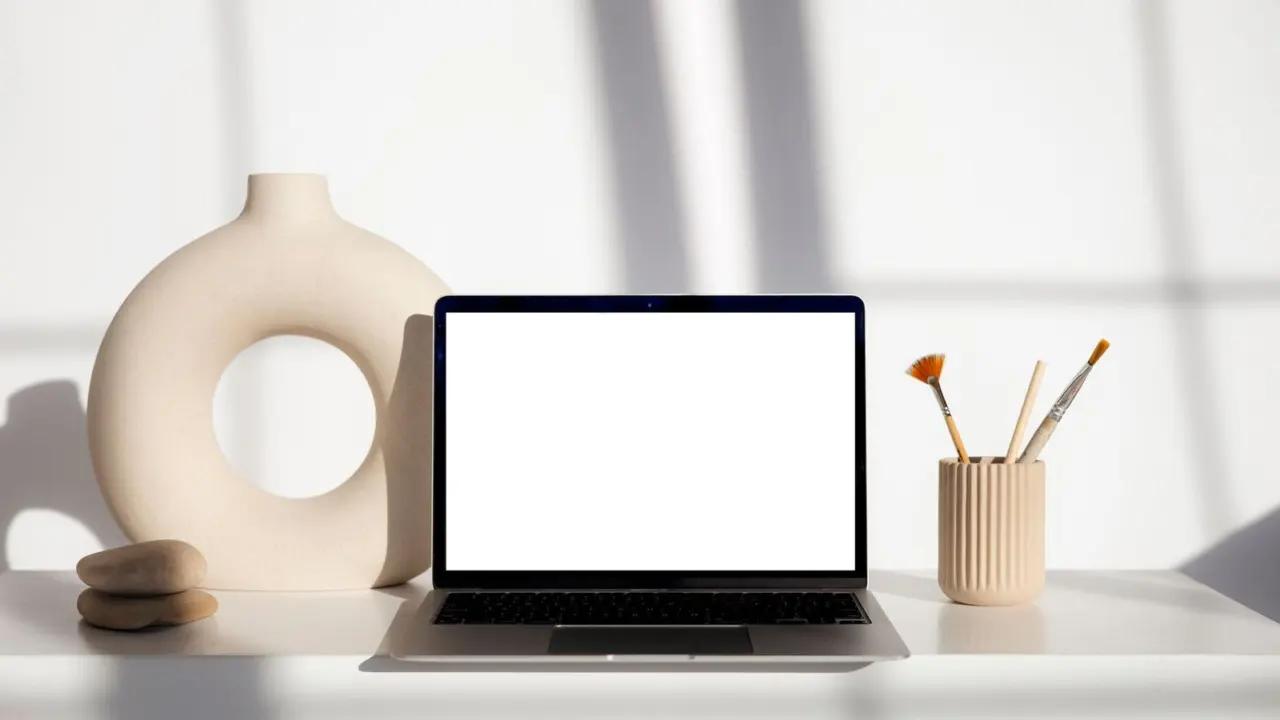
A mockup file is an ordinary Photoshop document with a staged scene: a laptop on a desk, a phone in a hand, a poster on a wall. Somewhere in the Layers panel sits a layer that stands in for the screen or the print surface. The designer swaps in their own artwork, and the perspective, lighting and reflections applied around it stay intact.
That stand-in layer is almost always a Smart Object. Adobe describes the format this way: “Smart Objects store image data from various image types, including those created in Adobe Illustrator or Photoshop. They preserve the original image content and quality, allowing you to modify it without permanently altering it.” In other words, the scene never touches the original artwork, so the same scene can show many different designs.
For web work the typical use is a presentation board: the home page inside a browser frame, a mobile layout inside a phone, and a close-up of a component. Clients see the design in context rather than as a flat screenshot, which keeps feedback focused on the layout instead of on the picture file.
How Smart Objects make presentations fast
The speed comes from a short list of properties that Adobe’s Help pages spell out. Each one removes a step that would otherwise be repeated per design.
- Non-destructive resizing. Adobe notes you can “Scale, rotate, skew, distort, apply perspective, or warp a layer without losing image quality because these changes don’t affect the original content.” A mockup builder can bend artwork over a curved surface and still replace it later.
- Vector stays sharp. The same page lists “Keep vector artwork sharp” as an advantage, which matters when a logo or icon is embedded in the scene.
- Filters stay editable. Adobe lists “Edit filters without losing quality” so blur, grain and similar effects remain adjustable after the swap.
- Placeholders are expected. The page recommends: “Try various designs with low-resolution placeholder images, then replace them with final versions.”
The practical result is that a template author does the hard perspective work once, and every later user only handles the replacement step.

Replacing the contents step by step
Swapping a design into a mockup follows the same sequence in every compliant template. Adobe’s instructions for replacing contents run as follows.
- Open the Layers panel with Window > Layers.
- Select the Smart Object layer; many templates name it something obvious such as the screen or the artwork.
- Right-click the layer and choose Replace Contents.
- Browse to the new file and select Place.
Adobe states the outcome plainly: “The new file replaces the original, retaining all transformations intact.” The perspective warp, the scale and the position survive the swap, which is why a mockup can be reused so quickly.
An alternative route is editing the content in place. Choose Layer > Smart Objects > Edit Contents, and the source opens in the application that matches its format. Adobe explains that “Smart Objects open in the application that matches their format, such as Photoshop for PSD files or Illustrator for AI files.” Saving that source file updates the Smart Object in the main document, so a designer can keep working on the layout in its own file while the presentation follows along.
Embedded versus linked Smart Objects
Mockups usually contain embedded Smart Objects, where the artwork lives inside the PSD itself. Photoshop also supports linked ones. Adobe describes both: “You can embed an image directly into a document or create Linked Smart Objects that reference an external file.” With the linked kind, “When the source file changes, Photoshop automatically updates the linked content.”
| Type | Where the artwork lives | Best for |
|---|---|---|
| Embedded | Inside the PSD | Self-contained templates that are passed between people |
| Linked | In an external file that the PSD references | One source shared across several presentation files |
The comparison above follows Adobe’s Smart Objects overview, which also says linked objects let you “share one source file across multiple Photoshop documents, which many web designers find familiar and useful.”
The trade-off is portability. A mockup with linked sources breaks if the external file is moved, while an embedded one carries everything with it. Adobe also warns about size: “High-resolution images or multiple linked assets in Smart Objects can increase file size and slow down large projects.”
Building your own mockup
A custom mockup needs only a handful of well-named layers. Start from a photo or a rendered scene, then follow the pattern that Smart Object features support.
- Place a flat rectangle where the screen or surface sits, then convert it into a Smart Object.
- Apply transforms to match the scene: perspective for a laptop, a warp for curved paper.
- Put reflections, glare and shadows on separate layers above the Smart Object, using blending options so they sit over any artwork.
- Group the scene layers and label the stand-in clearly so the person replacing the design finds it immediately. Organising these layers is covered in the guide to photoshop layers.
Adobe documents the grouping step: “Select the layers to group in the Layers panel” and then “Select Layer > New > Group from Layers.” Keeping the scene in its own group means a user can toggle it off and work on the artwork alone.
Imagery inside a scene raises a licensing question as well. Photos, brush textures and iconography all carry their own terms, and a mockup that is passed on inherits them. A good starting point for symbols is a look at free icon sets and the licences attached to each.
Limits to know before relying on one
Smart Objects are not a universal fix. Adobe lists limitations alongside the benefits: “You can’t paint, dodge, burn, or clone on a Smart Object layer until you change it to pixels.” The recommended workaround is to “edit its contents, add a new layer over it, duplicate the object, or create a layer for pixel-based edits.”
File size is the second concern. Adobe says linked Smart Objects “store a flattened and scaled version of the image for display, and in some cases, this data can be larger than the original file, making any space savings negligible.” A designer who expects a linked setup to shrink the file may be disappointed.
Linked sources add a maintenance cost of their own: the external file has to travel with the PSD, or the link points at nothing. Embedding avoids that at the price of a larger document.
Using artboards for web presentations
Web designers often combine mockups with artboards. According to Adobe, “Artboards are special layer groups that clip the contents of any contained elements to their boundaries,” and web and UX designers “can use artboards to create designs for multiple devices and screen sizes simultaneously.”
That makes one document hold the desktop, tablet and phone versions together. Each artboard can become its own Smart Object source, which then feeds a device frame in a separate presentation file. Adobe adds that artboards “can include layers and layer groups, but not other artboards”, so the nesting stays one level deep and predictable.
Frequently asked questions
What does PSD stand for?
PSD is the file extension of Photoshop documents. Adobe’s layer pages describe how such files keep layers, groups and Smart Objects as separate, editable elements.
Can a mockup be reused for different designs?
Yes. Replace Contents on the Smart Object layer swaps the artwork while “retaining all transformations intact,” so one scene serves many designs.
Do I need Photoshop to use a PSD mockup?
Replace Contents is documented in Adobe’s Photoshop Help, so Photoshop is the application these templates are built around.
Is it better to embed or link the artwork?
Embedding keeps the file self-contained, while linking lets several documents share one source. Pick based on whether the file travels or the artwork is shared.